Click to upload or drag and drop images.
Images: JPEG/JPG/PNG/WebP, Max 20MB
Describe the image you want to generate.
0/20000Click to upload or drag and drop
Supported formats: JPEG, PNG, WEBP, JPG Maximum file size: 20MB; Maximum files: 7
Upload an image file to use as input for the API
Note: when video input is provided, the output duration is determined by the model automatically. This duration parameter will not take effect.
Audio ID list. Up to 3 ID is allowed.
Video ratio
Character ID list. Each character ID uses 1 or 2 image slot. Available character slots: 3/7. Remaining image slots: 5/7.
Output video resolution. Valid values: 720P(default), 1080P, 4k.
Optional video input. Only 1 video is allowed and it uses 2 image slots.
Random seed. Range: [0, 2147483647]. If not specified, the system generates a seed automatically. Fixing the seed can improve reproducibility, but results may still vary due to the model’s stochasticity.
Explore different use cases and parameter configurations
Basic Voice
Input description
Textarea description
0/20000Input description
No result yet. Click generate to start.
Input description
Click to upload or drag and drop
Supported formats: JPEG, PNG, WEBP Maximum file size: 20MB; Maximum files: 2
Array of character reference image URLs. Up to 2 images are supported. Index 0 is the portrait image, and index 1 is the body image. The body image is optional, but if provided, the portrait image must be present at index 0.
Audio ID list. Up to 1 IDs are allowed.
Character Description
0/20000No result yet. Click generate to start.
README
Complete guide to using Gemini Omni 1.1 Flash
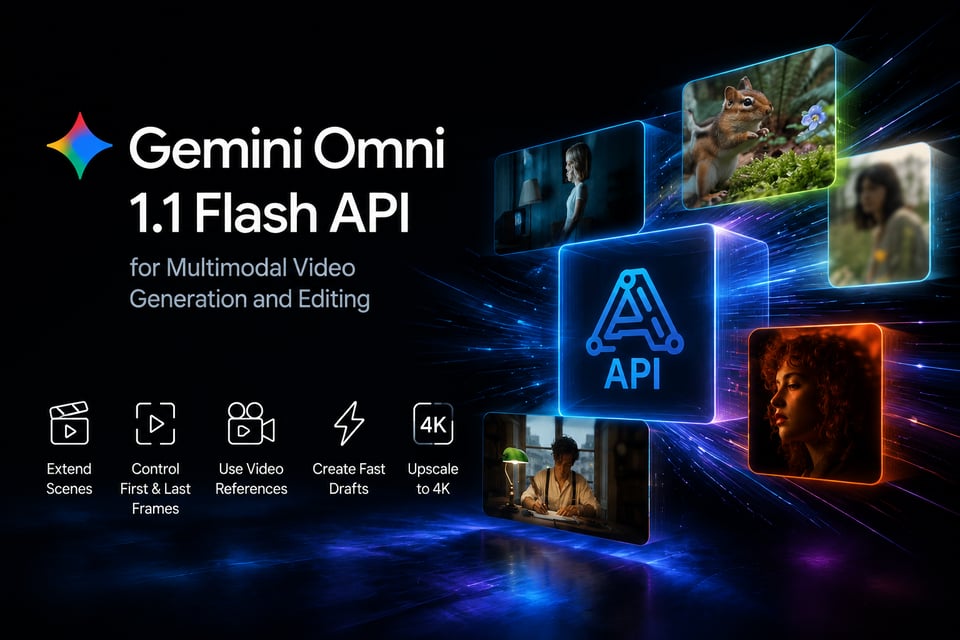
Gemini Omni 1.1 Flash API for Multimodal Video Generation and Editing

curl https://api.kie.ai/api/v1/jobs/createTask \-H "Authorization: Bearer $KIE_API_KEY" \-H "Content-Type: application/json" \-d '{"model": "google/gemini-omni-flash-1-1","input": {"prompt": "A drone shot gliding over a misty pine forest at sunrise","duration": "4","aspect_ratio": "16:9","resolution": "720p"}}'
Build AI Video Workflows with Google Omni Flash API
Generate AI Videos from Multimodal Prompts and References
Create First-to-Last Frame Videos with Google Omni Flash API
Go from Fast Drafts to 4K with Gemini Omni 1.1 Flash
Key Features of Gemini Omni 1.1 Flash API on Kie AI
Extend Scenes with Gemini Omni 1.1 Flash API
Control First and Last Frames with Google Omni Flash API
Generate Faster 360p Drafts with Gemini Omni
Create 1080p and 4K Videos with Gemini Omni 1.1 Flash
Generate with Video References in Gemini Omni
Direct Cinematic Motion with Google Omni 1.1 Flash API
How to Use Gemini Omni 1.1 Flash API on Kie AI
- 1
Step 1 — Test Gemini Omni 1.1 Flash Online in the Kie AI Playground
Start in the Kie AI online playground to explore Gemini Omni 1.1 Flash before writing any code. Try prompts, upload supported references, compare outputs, and test video controls in a simple browser-based workflow. - 2
Step 2 — Get Your Gemini Omni 1.1 Flash API Key
Create a Kie AI account and get your API credentials for Gemini Omni 1.1 Flash API access. Use the same platform to move from online testing to developer integration without setting up your own model infrastructure. - 3
Step 3 — Send Prompts and References to Google Omni Flash API
Connect Google Omni Flash API to your application and send the inputs required for your workflow. Depending on the task, you can use text prompts, images, video references, or first and last frames to guide generation and editing. - 4
Step 4 — Generate Gemini Omni Videos and Add Them to Your App
Run your Gemini Omni 1.1 Flash API request and use the generated video in your SaaS product, creative platform, or automated media workflow. Start with fast drafts when testing ideas, then move to higher-resolution output for final production.