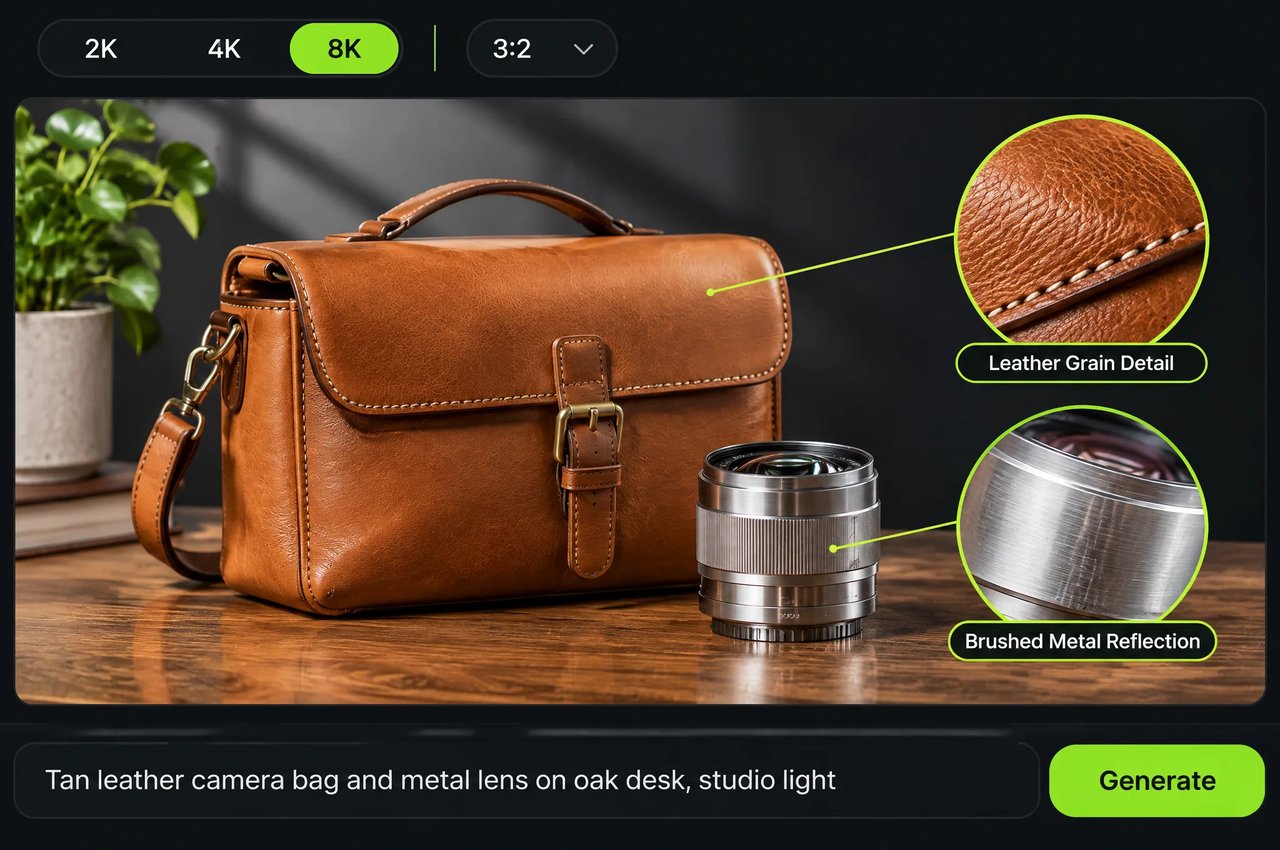
01
カメラで撮影したような写実性とネイティブ8K出力
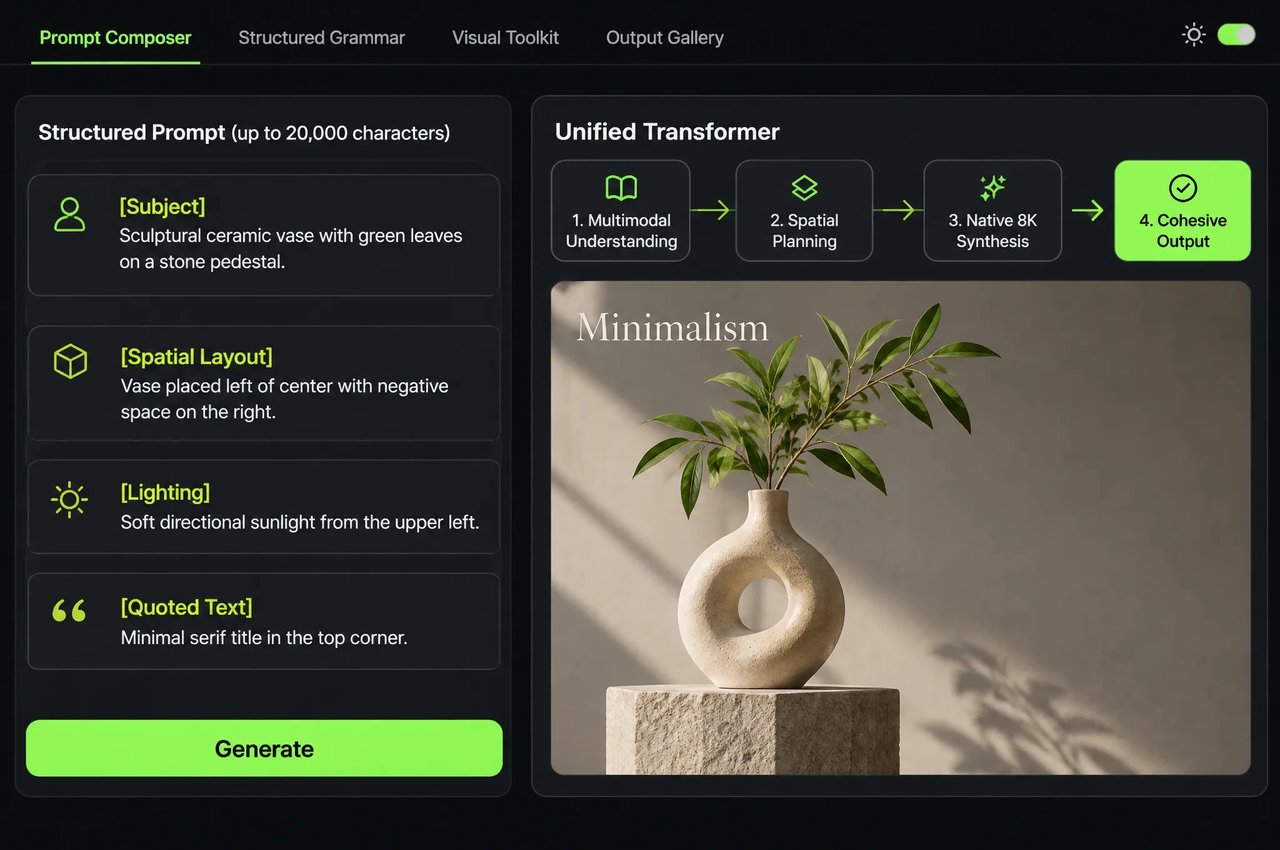
Kling Image 4.0は2K、4K、8K解像度で画像をネイティブ生成します。肌、布地、ガラス、革の質感や光と影の移り変わりを精緻に表現してカメラで撮影したような仕上がりを実現し、トリミングや拡大時にも多くの質感とディテールを保持します。また、集合ポートレートでは輪郭、顔立ち、年齢、身体的特徴に自然な多様性を持たせます。
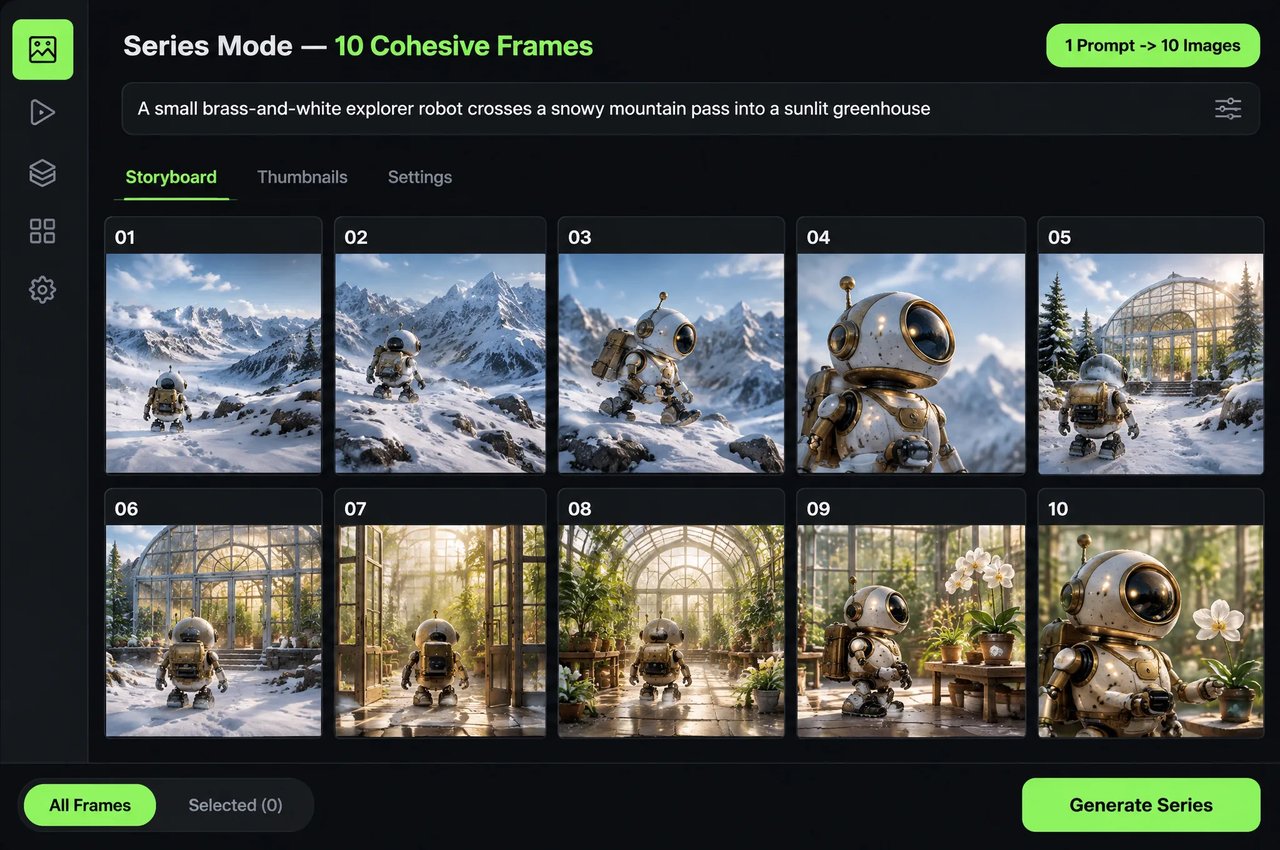
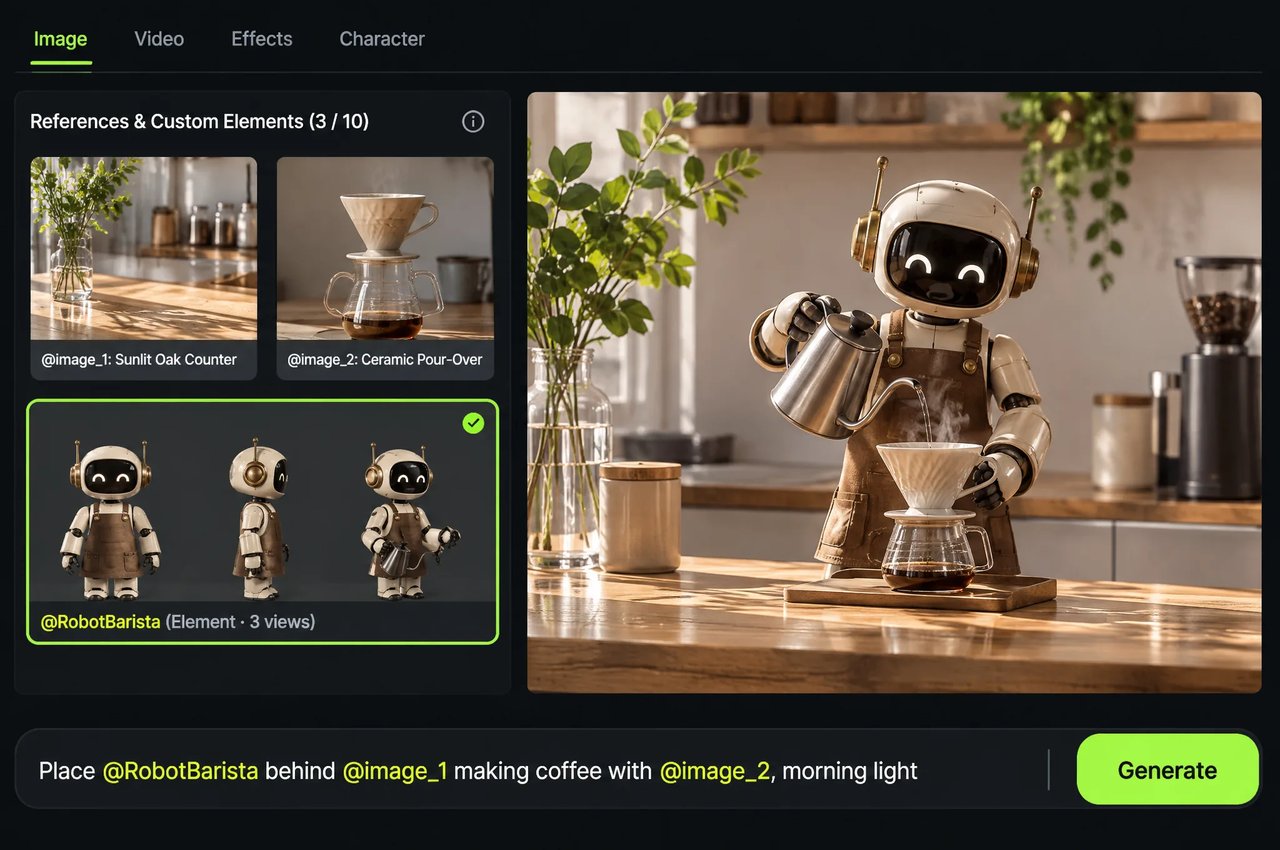
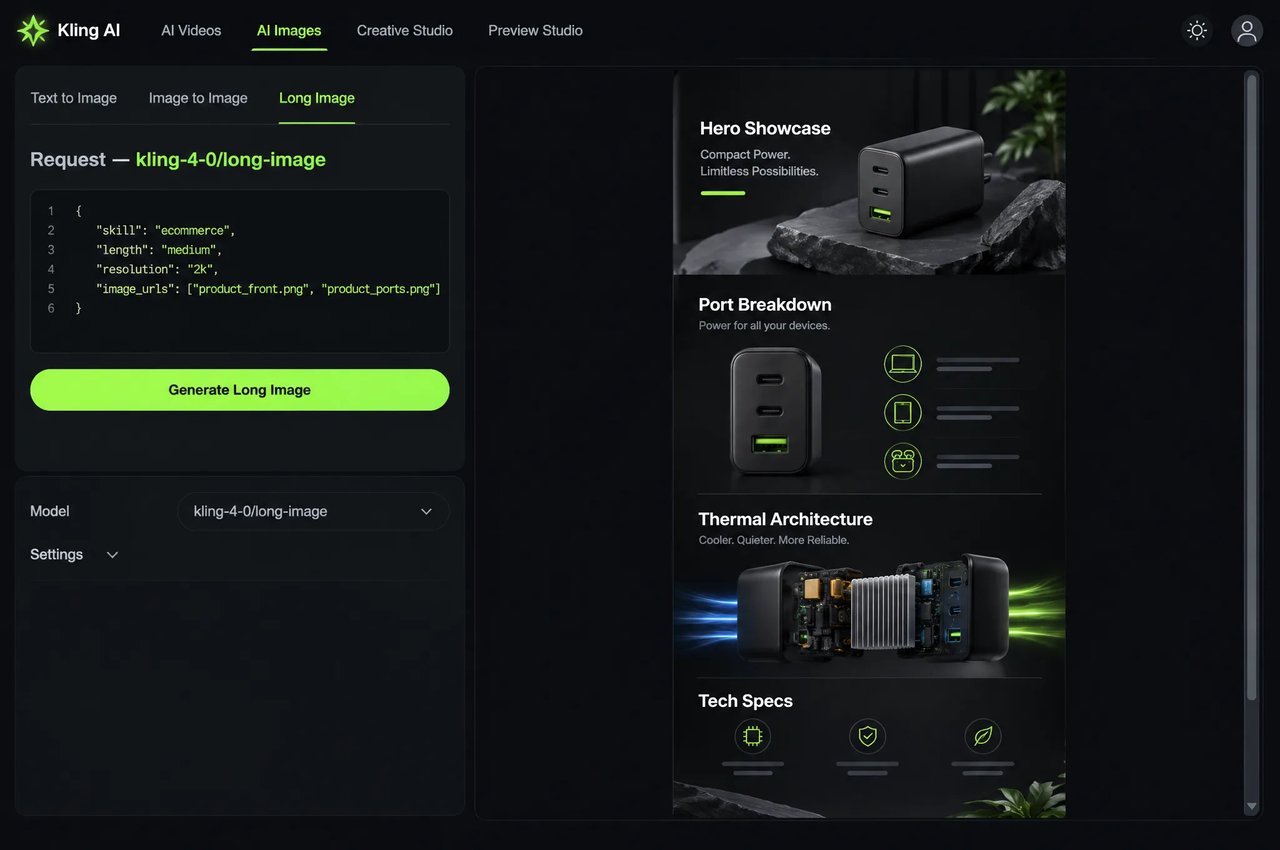
Kling Image 4.0は、ネイティブ統合理解・生成アーキテクチャ(Native Unified Understanding and Generation Architecture)をベースとするKling AIの画像生成モデルで、2026年11月17日にリリースされました。Kie.ai上では2つのエンドポイントとして稼働しており、ネイティブ2K、4K、8K生成、複数画像やelementsの参照、2〜10枚の連続画像セット生成に対応するkling-4-0/imageと、ECサイトの商品詳細ページやWebページ全体のデザインを生成するkling-4-0/long-imageを提供しています。
Required. E-commerce: reference product images as @image_1, @image_2 ... Webpage: reference the style image as @style and the subject image as @subject. Any @ followed by letters/digits/underscore/Chinese is treated as a reference; use a full-width @ or add a space after @ for emails or handles.
0/20000ecommerce: product detail page (1-3 product images required). webpage: web page design (optional style and subject images).
Click to upload or drag and drop
Supported formats: PNG, JPEG Maximum file size: 20MB; Maximum files: 3
E-commerce only. 1-3 product images, referenced in the prompt as @image_1, @image_2 ... in upload order. Recommended: width and height >= 300px, aspect ratio between 2:5 and 5:2.
E-commerce only. short: about 2-5 sections; medium: about 6-10 sections; long: about 11-18 sections. Sections are content blocks within one long image, not separate images.
Output resolution.

Explore different use cases and parameter configurations
Text prompt (required). Reference uploaded images as @image_1, @image_2 ... in upload order, and elements as @name. Put any text that should appear in the image inside quotation marks.
0/20000Click to upload or drag and drop
Supported formats: PNG, JPEG Maximum file size: 20MB; Maximum files: 10
Optional reference images (up to 10). Leave empty for text-to-image; upload images for image-to-image and reference them in the prompt as @image_1, @image_2 ...
Optional subjects created for this task, referenced in the prompt as @name. Each element needs 2-4 images. image_urls and elements together cannot exceed 10.
default: standard generation (1-9 images). series: generate a coherent set of 2-10 images.
Output resolution.
Aspect ratio of the output image.
Number of images. Default mode: 1-9 (default 1). Series mode: 2-10, required.
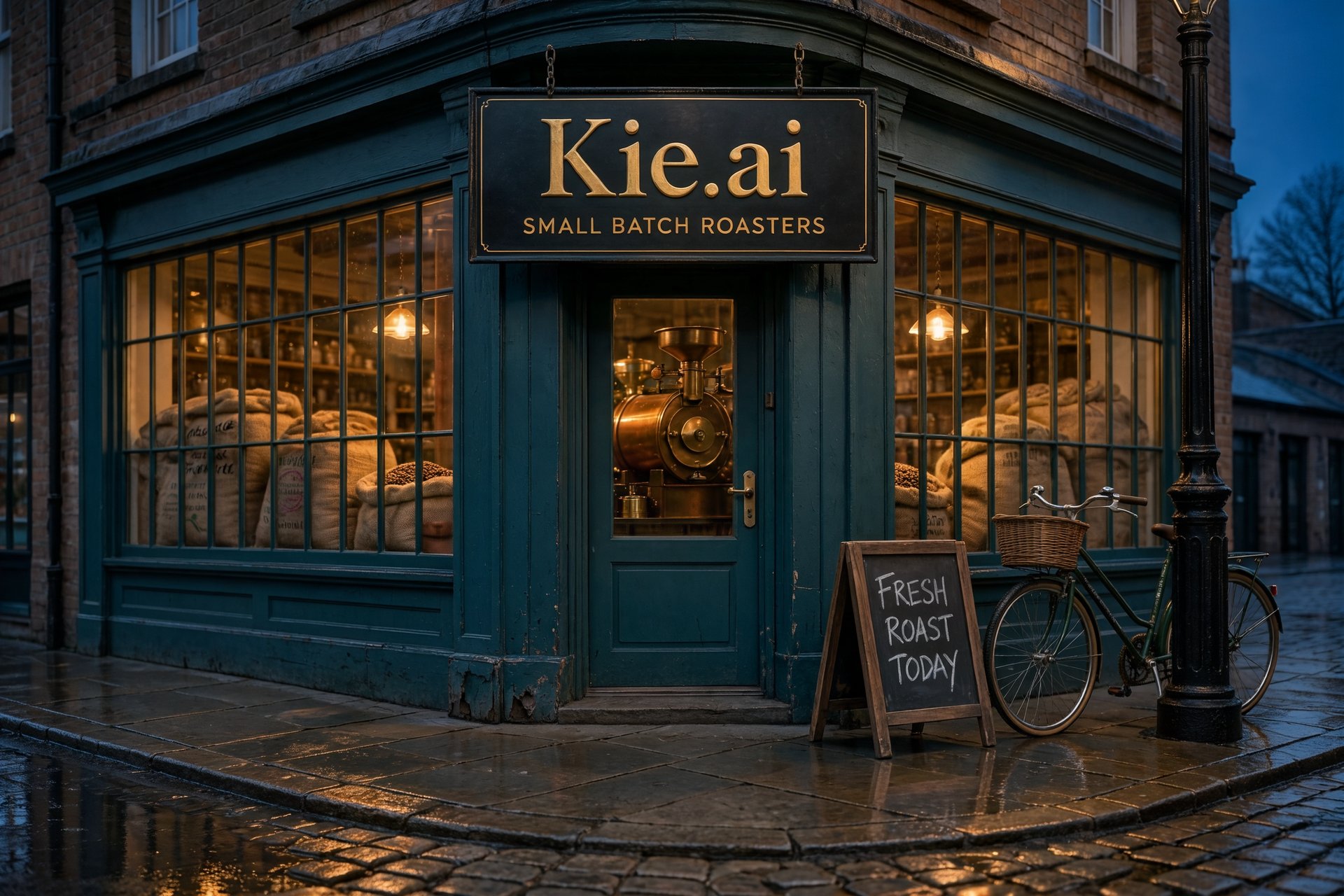
Explore different use cases and parameter configurations
Complete guide to using Kling Image 4.0
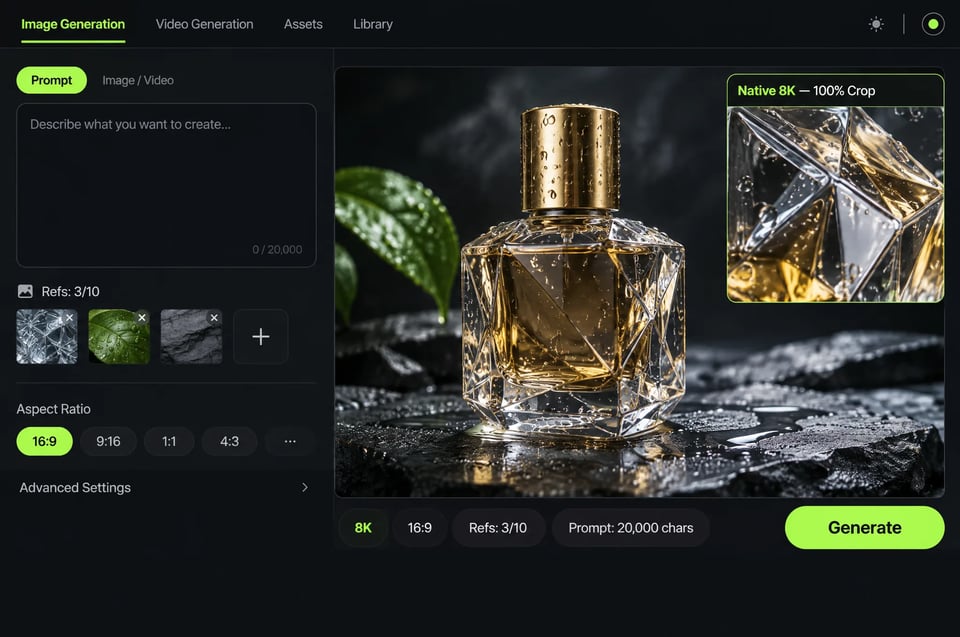
curl https://api.kie.ai/api/v1/jobs/createTask \-H "Authorization: Bearer $KIE_API_KEY" \-H "Content-Type: application/json" \-d '{"model": "kling-4-0/image","input": {"prompt": "A faceted glass perfume bottle on wet slate, studio lighting","resolution": "2k","aspect_ratio": "16:9"}}'
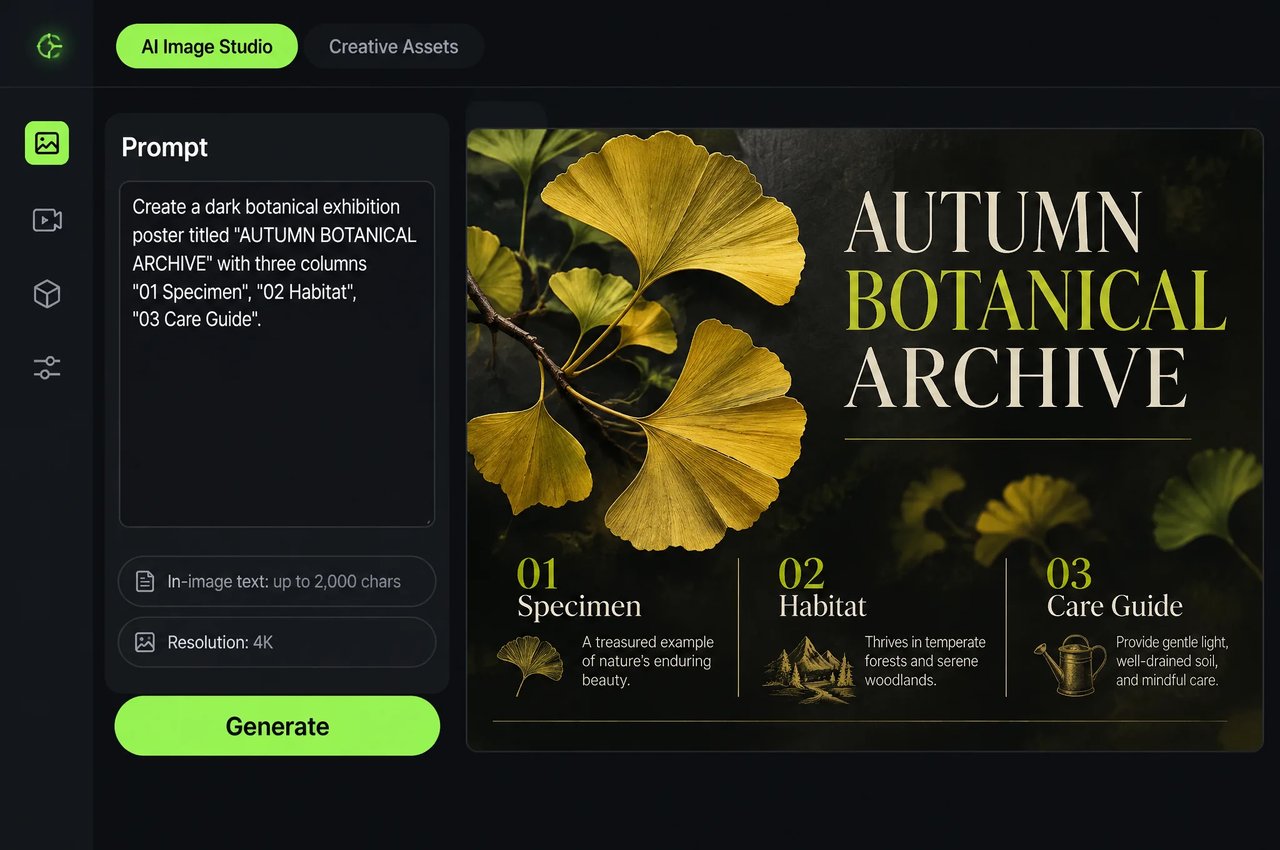
modelをkling-4-0/imageに設定した場合のPOST /api/v1/jobs/createTaskのパラメータです。
| Parameter | 値とルール |
|---|---|
| model | kling-4-0/image |
| prompt | 必須。APIおよびプレイグラウンドで最大20,000文字(画像内テキストは引用符で囲み、@image_1…および@nameで参照) |
| image_urls | 任意。最大10件の画像URL(JPG、JPEG、またはPNG、各最大20MB、アスペクト比2:5〜5:2、長辺最大8,192px) |
| elements | 任意のカスタム被写体({name, image_urls[2..4], tag, description})。image_urls + elements ≤ 10 |
| mode | default(デフォルト)またはseries(一貫性のある画像セット) |
| count | defaultモードでは1〜9(デフォルトは1)。seriesモードでは2〜10が必須 |
| resolution | 2k(デフォルト)、4k、または8k(2k/4kは通常PNG、8kはJPEGを返します) |
| aspect_ratio | auto(デフォルト)、1:1、16:9、9:16、4:3、3:4、3:2、2:3、21:9 |
modelをkling-4-0/long-imageに設定した場合のPOST /api/v1/jobs/createTaskのパラメータです(1タスクにつき縦長画像を1枚出力。異なるskill間でフィールドを混在させないでください)。
| Parameter | 値とルール |
|---|---|
| model | kling-4-0/long-image |
| skill | 必須:ecommerce(商品詳細ページ)またはwebpage(Webページデザイン) |
| prompt | 必須。最大20,000文字(ecommerceでは@image_1…、webpageでは@styleおよび@subjectで参照) |
| image_urls | ecommerceのみ必須:1〜3件の商品画像URL(JPG、JPEG、またはPNG、各最大20MB、アスペクト比は2:5〜5:2である必要があり、範囲外の場合はタスクが失敗します) |
| length | ecommerceのみ:1枚の縦長画像内にshort(約2〜5セクション)、medium(約6〜10セクション、デフォルト)、またはlong(約11〜18セクション) |
| style_image, subject_image | webpageのみ:任意のJPG、JPEG、またはPNGのURL(各最大20MB)。@styleおよび@subjectとして参照 |
| resolution | 1kまたは2k(デフォルトは2k) |