Describe the scene, action, camera and sound. Put dialogue in quotes; it is spoken in its original language
0/5000Output resolution (short side): 720p, 1080p or 1440p. Price depends on resolution
Frame rate. 48/50 fps allow up to 10 s
Video length in seconds: 6–20 s in 2 s steps; up to 10 s at 1440p or at 48/50 fps
Aspect ratio of the video
Random seed (0–2147483647). Leave empty for a random seed
Explore different use cases and parameter configurations
Click to upload or drag and drop
Supported formats: JPEG, PNG, WEBP Maximum file size: 10MB
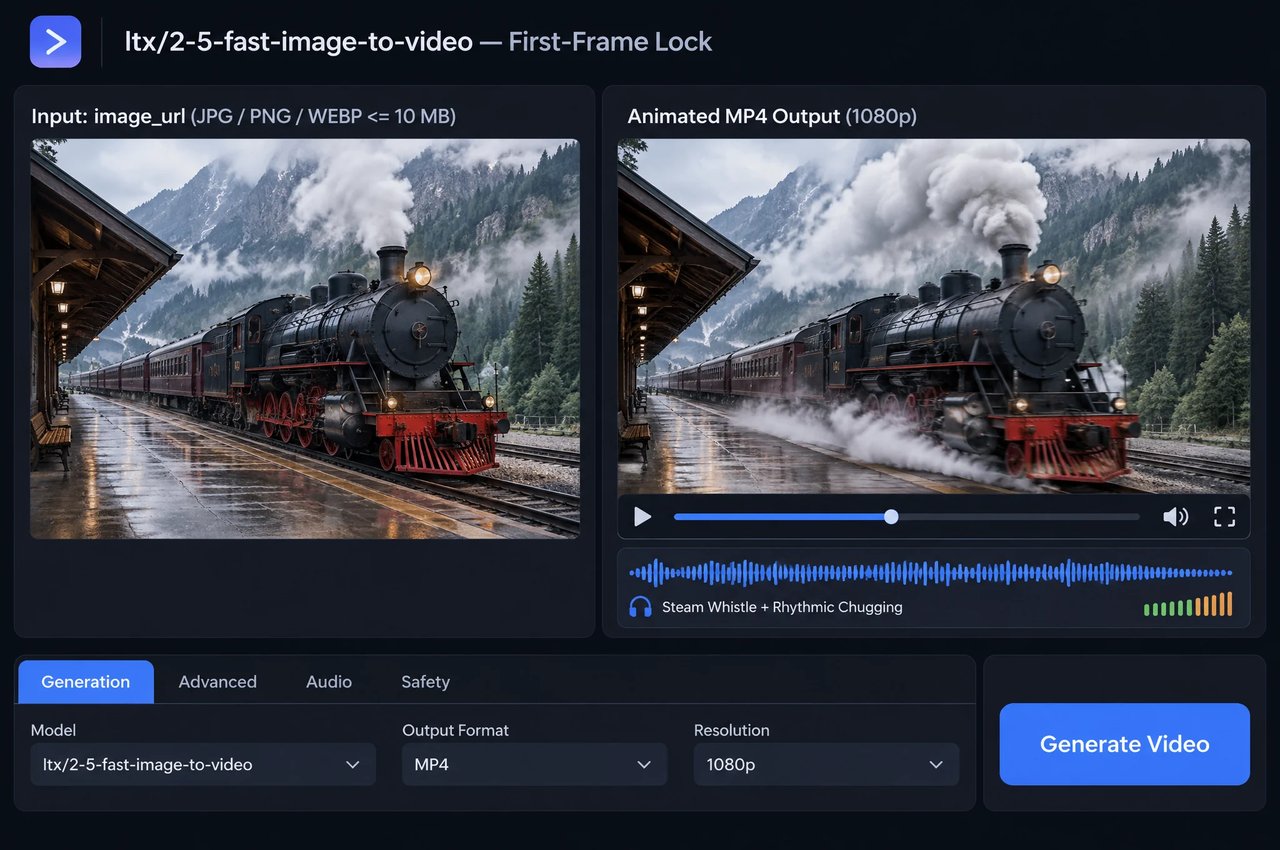
First frame of the video (JPG / PNG / WEBP, up to 10 MB). The video keeps this image's aspect ratio
Describe what happens next: action, camera and sound. Put dialogue in quotes
0/5000Output resolution (short side): 720p, 1080p or 1440p. Price depends on resolution
Frame rate. 48/50 fps allow up to 10 s
Video length in seconds: 6–20 s in 2 s steps; up to 10 s at 1440p or at 48/50 fps
Random seed (0–2147483647). Leave empty for a random seed
Explore different use cases and parameter configurations
Click to upload or drag and drop
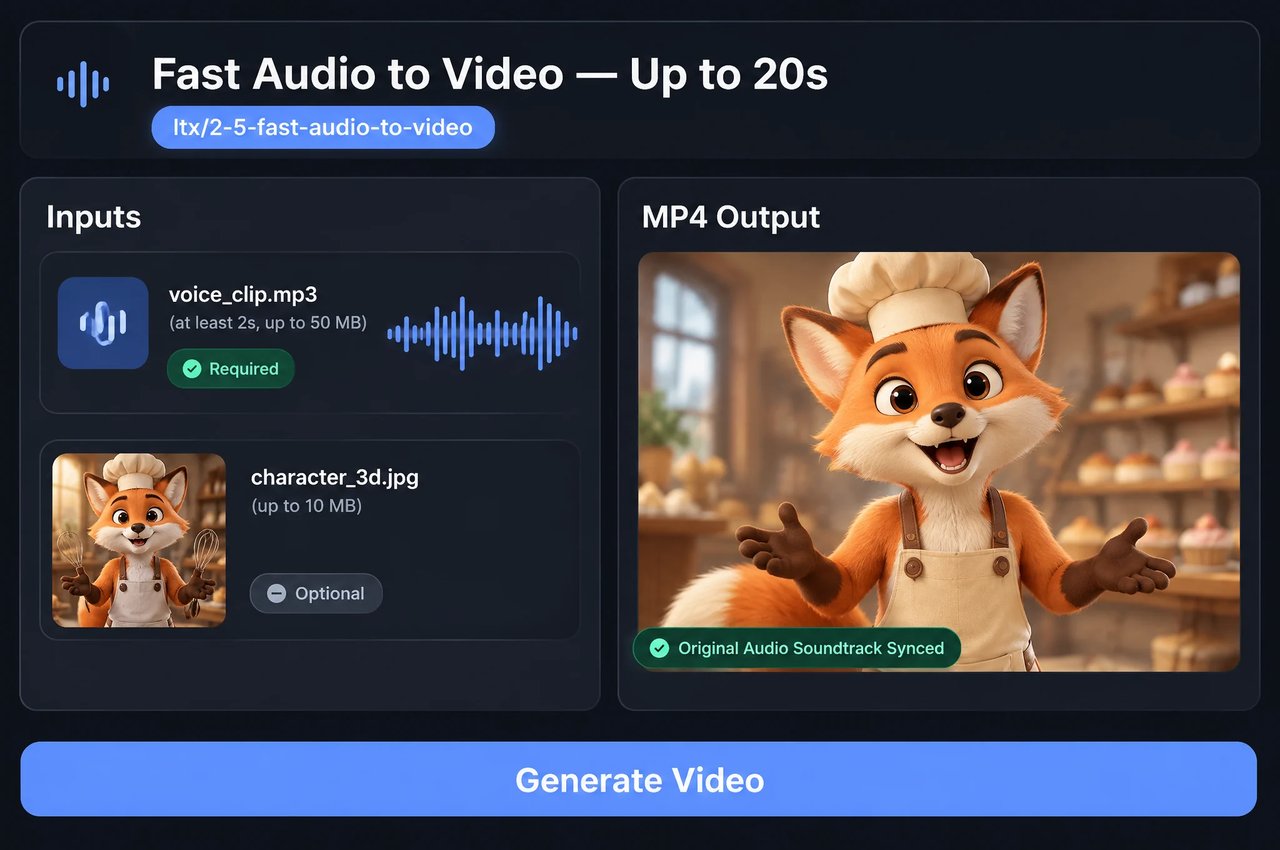
Supported formats: MPEG, WAV, X-WAV, MP4, AAC, OGG, FLAC Maximum file size: 50MB
Speech, singing or music (MP3 / WAV / M4A / AAC / OGG / FLAC, at least 2 s, up to 50 MB). The video follows the audio and keeps it as the soundtrack
Click to upload or drag and drop
Supported formats: JPEG, PNG, WEBP Maximum file size: 10MB
Optional first frame (e.g. a portrait for a talking video). The video keeps this image's aspect ratio
Describe the picture: who is speaking, the setting and the camera
0/5000Output resolution (short side): 720p, 1080p or 1440p. Price depends on resolution
Frame rate. 48/50 fps allow up to 10 s
Random seed (0–2147483647). Leave empty for a random seed
Explore different use cases and parameter configurations
Describe the scene, action, camera and sound. Put dialogue in quotes; it is spoken in its original language
0/5000Output resolution (short side): 720p or 1080p. Price depends on resolution
Frame rate. Does not change the price
Video length in seconds: 6, 8 or 10
Aspect ratio of the video
Random seed (0–2147483647). Leave empty for a random seed
Explore different use cases and parameter configurations
Click to upload or drag and drop
Supported formats: JPEG, PNG, WEBP Maximum file size: 10MB
First frame of the video (JPG / PNG / WEBP, up to 10 MB). The video keeps this image's aspect ratio
Describe what happens next: action, camera and sound. Put dialogue in quotes
0/5000Output resolution (short side): 720p or 1080p. Price depends on resolution
Frame rate. Does not change the price
Video length in seconds: 6, 8 or 10
Random seed (0–2147483647). Leave empty for a random seed
Explore different use cases and parameter configurations
README
Complete guide to using LTX 2.5
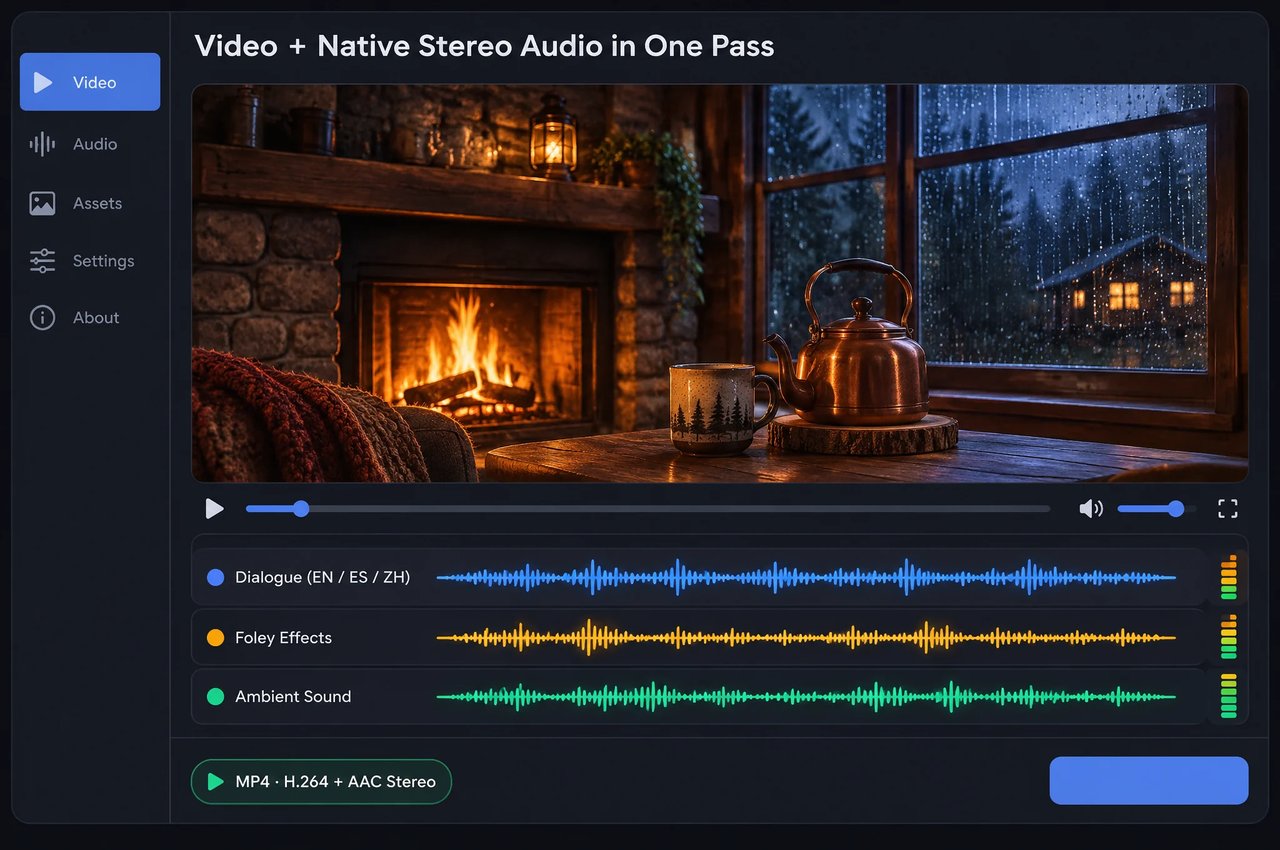
LTX 2.5 API für Video und natives Audio in einem Durchlauf

curl https://api.kie.ai/api/v1/jobs/createTask \-H "Authorization: Bearer $KIE_API_KEY" \-H "Content-Type: application/json" \-d '{"model": "ltx/2-5-fast-text-to-video","input": {"prompt": "A baker in a stone bakery taps a warm sourdough loaf beside a crackling oven","resolution": "1080p","fps": 24,"duration": 10,"aspect_ratio": "16:9"}}'
Wichtige Funktionen von LTX 2.5


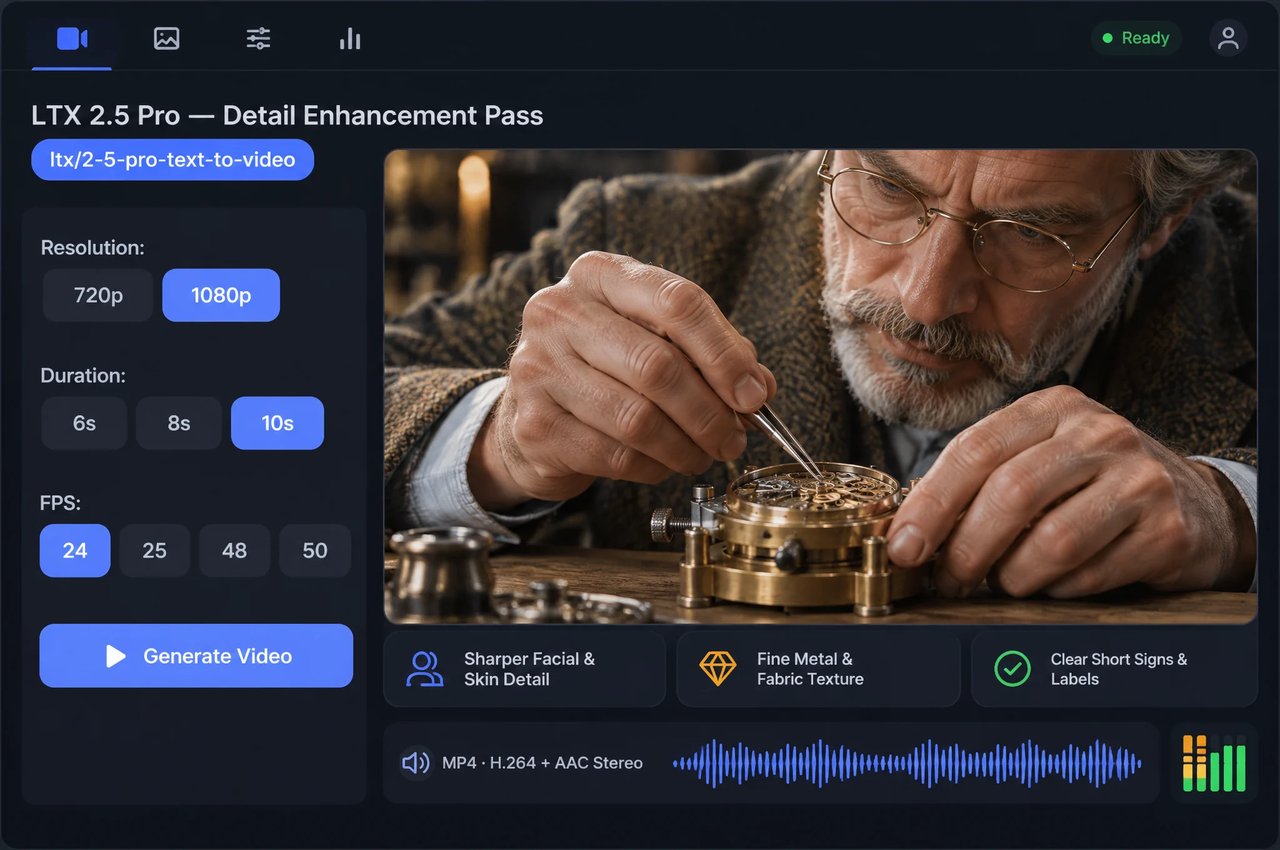
LTX 2.5 Pro: Schärfere Gesichter, Texturen und kurzer Text

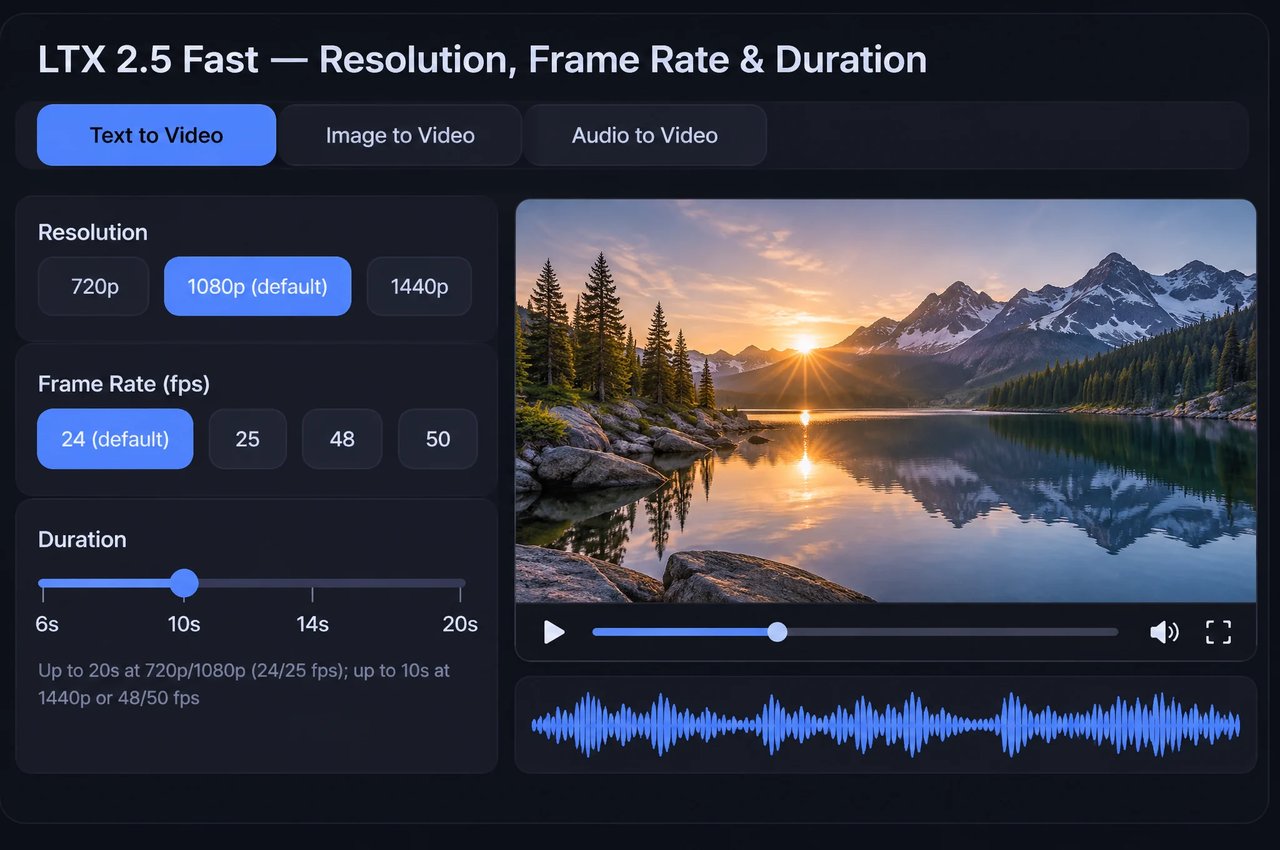
LTX 2.5 Fast: Bis zu 20 s oder bis zu 10 s bei 1440p / 50 fps

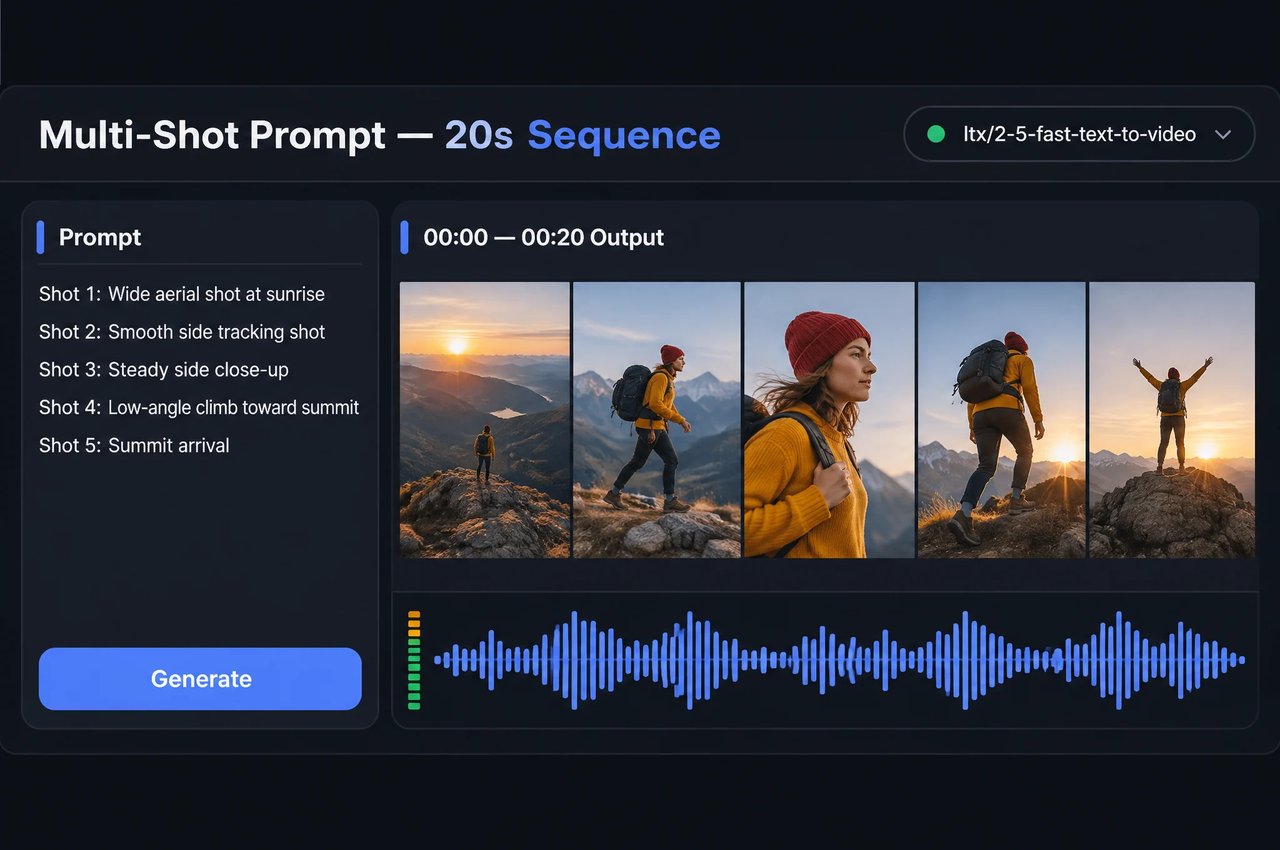
Multi-Shot-Prompts und ununterbrochene 20-Sekunden-Aufnahmen

Fast-Audio-zu-Video: Lip-Sync, Gesang und im Takt abgestimmte Bewegung

Festgelegtes Startbild, fünf Seitenverhältnisse und Seeds
Parameter der LTX 2.5 API
Request-Felder für die fünf Endpunkte von LTX 2.5 Fast und LTX 2.5 Pro auf Kie.ai (POST /api/v1/jobs/createTask).
| Parameter | Werte und Endpunkt-Regeln |
|---|---|
| model | Fast-Variante: ltx/2-5-fast-text-to-video, ltx/2-5-fast-image-to-video, ltx/2-5-fast-audio-to-video; Pro-Variante: ltx/2-5-pro-text-to-video, ltx/2-5-pro-image-to-video |
| prompt | Erforderlich bei allen fünf Endpunkten (1 bis 5.000 Zeichen); setzen Sie gesprochene Dialoge in Anführungszeichen; verwenden Sie Shot 1 / Shot 2 für Multi-Shot-Schnitte |
| image_url | Erforderlich für Fast- und Pro-Image-to-Video, optional für Fast-Audio-zu-Video: öffentliche JPG-, PNG- oder WEBP-URL (max. 10 MB), die als erstes Frame verwendet wird |
| audio_url | Nur für ltx/2-5-fast-audio-to-video erforderlich: öffentliche MP3-, WAV-, M4A-, AAC-, OGG- oder FLAC-URL (max. 50 MB, mindestens 2 Sekunden); wird als Ausgabe-Soundtrack verwendet |
| resolution | Optional: Fast unterstützt 720p, 1080p (Playground-Standard) oder 1440p (1440p max. 10 s); Pro unterstützt 720p oder 1080p (Playground-Standard) |
| fps | Optional bei allen fünf Endpunkten: 24 (Playground-Standard), 25, 48 oder 50 (bei 48 und 50 fps beträgt die maximale Dauer 10 s; fps beeinflusst die Preise pro Sekunde nicht) |
| duration | Optional: Fast-Text-/Image-to-Video 6 bis 20 s in 2-s-Schritten (Playground-Standard: 10 s; max. 10 s bei 1440p oder 48/50 fps); Pro-Text-/Image-to-Video 6, 8 oder 10 s (Playground-Standard: 10 s); Fast-Audio-zu-Video richtet sich nach der Länge von audio_url, max. 20 s (10 s bei 1440p oder 48/50 fps) |
| aspect_ratio | Optional nur bei Fast- und Pro-Text-zu-Video: 16:9 (Playground-Standard), 9:16, 1:1, 3:2 oder 2:3 (image_url sperrt aspect_ratio; Fast-Audio-zu-Video ohne image_url gibt 16:9 aus) |
| seed | Optionale Ganzzahl von 0 bis 2.147.483.647 bei allen fünf Endpunkten, um die Ausgabe bei erneuter Ausführung identischer Eingaben zu reproduzieren |
| callBackUrl | Optionale Webhook-URL auf oberster Ebene für Benachrichtigungen zum Abschluss von Aufgaben (ausgegebene MP4-Links bleiben etwa 14 Tage gültig) |
LTX 2.5 Fast vs. LTX 2.5 Pro auf Kie.ai
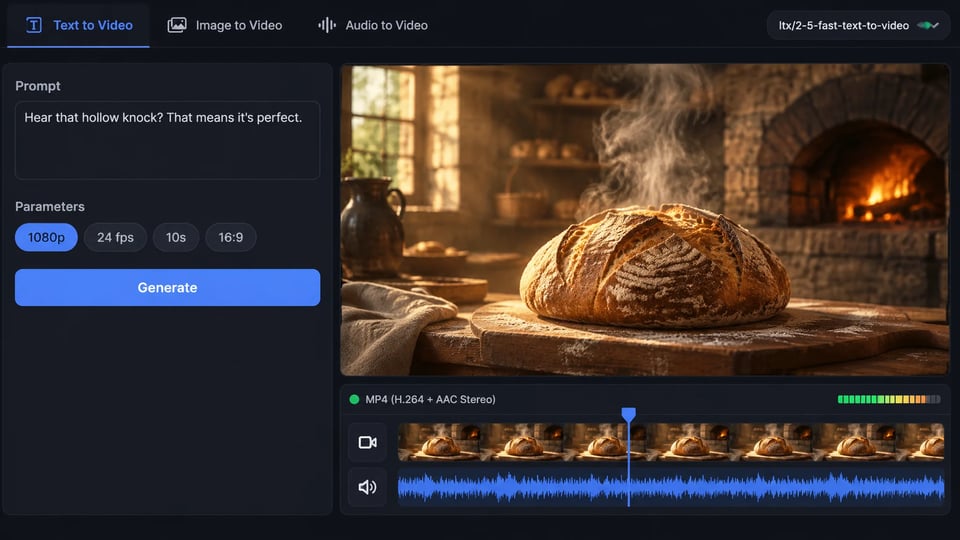
Beide Stufen teilen sich dieselbe Lightricks LTX-2.5-Basis und unterstützen synchronisierte Dialoge, Foley-Effekte und Umgebungsgeräusche mit AAC-Stereo-Ausgabe; wählen Sie Fast für Länge, 1440p oder Audio-zu-Video und Pro für visuelle Details im Nahbereich.
| Feature | LTX 2.5 Fast | LTX 2.5 Pro |
|---|---|---|
| Endpoints | Text-zu-Video, Bild-zu-Video, Audio-zu-Video | Text-zu-Video, Bild-zu-Video (kein Audio-zu-Video) |
| Resolutions | 720p, 1080p (Playground-Standard), 1440p | 720p, 1080p (Playground-Standard) |
| Cliplänge | 6–20 s in 2-s-Schritten (max. 10 s bei 1440p oder 48/50 fps); Audio-zu-Video richtet sich nach dem Audio, max. 20 s (10 s bei 1440p oder 48/50 fps) | 6, 8 oder 10 s |
| Bildraten | 24 (Playground-Standard), 25, 48, 50 fps | 24 (Playground-Standard), 25, 48, 50 fps |
| Visuelle Details & Text im Bild | Standarddetails für Multi-Shot-Szenen und lange Einstellungen | Detail-Pass für schärfere Gesichter, Haut-, Stoff-, Metall- und Glasstrukturen sowie kurze Texte auf Schildern oder Etiketten |
| Audioausgabe | MP4 (H.264 + AAC Stereo): Dialoge, Geräusche (Foley) und Atmosphäre in einem Durchgang oder hochgeladenes Audio bei Audio-zu-Video | MP4 (H.264 + AAC Stereo): Dialoge, Geräusche (Foley) und Umgebungsgeräusche in einem Durchgang (wie bei Fast) |
So prompten Sie LTX 2.5
- 1
Schritt 1: Zwischen Fast und Pro wählen, dann den Endpunkt festlegen
Wählen Sie LTX 2.5 Fast, wenn Sie Clips bis zu 20 Sekunden, eine 1440p-Ausgabe, schnellere Iterationen oder ltx/2-5-fast-audio-to-video benötigen. Wählen Sie LTX 2.5 Pro (ltx/2-5-pro-text-to-video oder ltx/2-5-pro-image-to-video) für Porträt-Nahaufnahmen bis zu 10 Sekunden, Materialtexturen oder Produktaufnahmen mit kurzen englischen Beschriftungen oder Etiketten. - 2
Schritt 2: Gesprochene Dialoge in Anführungszeichen setzen und den Ton beschreiben
Setzen Sie bei Text-zu-Video und Bild-zu-Video in beiden Stufen den exakt gesprochenen Text in der Zielsprache in Anführungszeichen und fügen Sie unter „Sound:“ eine Beschreibung der Umgebungsgeräusche, der geräuscherzeugenden Handlungen (Foley) und eventueller instrumentaler Hintergrundmusik hinzu, damit Audioereignisse synchron zur Bewegung im Bild ablaufen. - 3
Schritt 3: Durchgehende Einstellungen oder nummerierte Shots strukturieren
Beschreiben Sie für eine ungeschnittene Einstellung (bis zu 20 Sekunden in Fast bei 720p oder 1080p mit 24 oder 25 fps oder bis zu 10 Sekunden in Pro) jeden Handlungsabschnitt und den passenden Ton der Reihe nach. Stellen Sie für Szenen mit mehreren Schnitten in einem einzelnen Fast-Clip den Abschnitten Shot 1:, Shot 2:, Shot 3: voran und wiederholen Sie wichtige Kleidungsdetails der Figuren über die Shots hinweg. - 4
Schritt 4: Auflösung, Bildrate, Seed und Speicherung festlegen
Wählen Sie 720p oder 1080p für Fast und Pro (oder 1440p in Fast für Clips bis zu 10 Sekunden) sowie 24, 25, 48 oder 50 fps. Geben Sie einen ganzzahligen Seed an, um Ergebnisse bei identischen Eingaben zu reproduzieren, und laden Sie fertige MP4-Dateien in Ihren eigenen Speicher herunter, bevor temporäre URLs nach etwa 14 Tagen ablaufen.